 THE GAME ARCHIVE
Facing Zarkov: Five Skill Levels, Local Rivals and Time Controls
Grandmaster Chess starts with an opponent already waiting: after the start screen, it puts you straight into a game against the computer. The default assignment gives Black to the AI, so you take White and make the opening move. That computer opponent uses Zarkov AI, described as learning from its mistakes, with five adjustable skill levels spanning beginner to grandmaster. To change the challenge, use the Game tab’s AI difficulty settings. The manual assumes you already understand chess fundamentals; the immediate match is a starting point for playing, rather than an introduction to the rules.
Computer practice is only one way to play: local competitive two-player mode lets you face a friend instead. Match setup also includes control over how much time each player receives, putting the clock alongside opponent selection as a concrete part of arranging a game. Those time settings sit in the Game tab, together with options for starting a new game and setting AI difficulty. Against Zarkov, the documented adjustments therefore cover both the computer’s skill level and the players’ time allowances; a local human rival provides the alternative to the computer opponent.
Studying the Game: Teaching, Move Analysis and Opening Repertoires
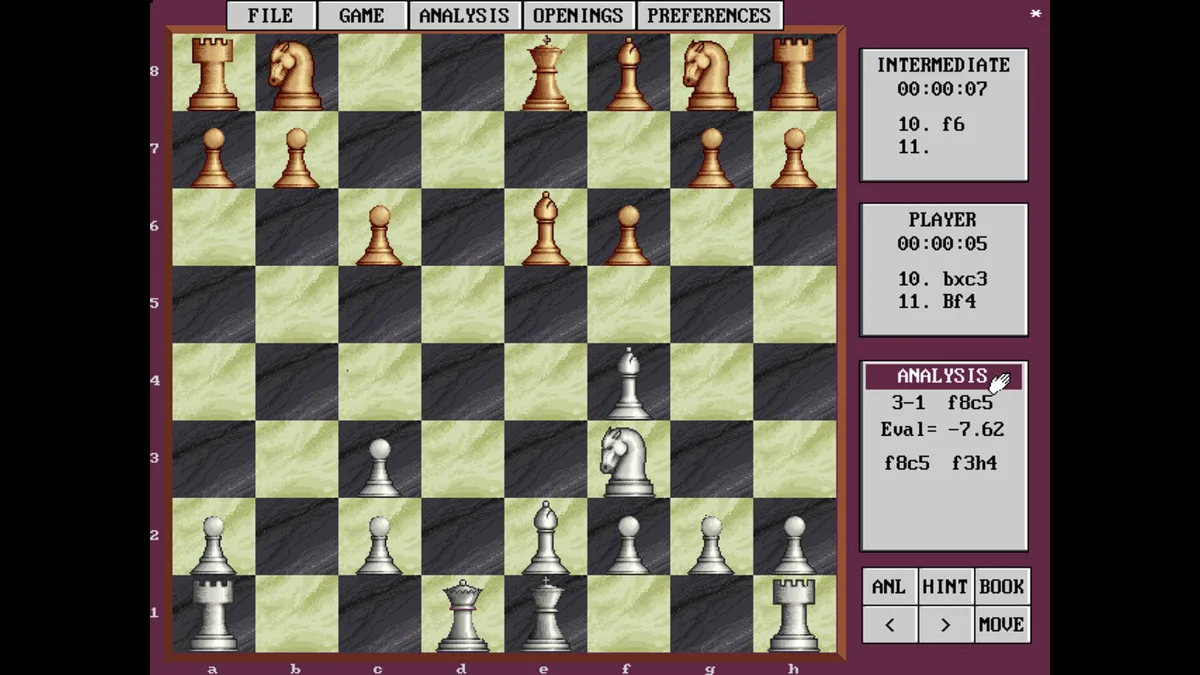
Teaching Mode covers chess fundamentals before introducing more complex strategies, while the analysis tools provide help during practice against the computer. Open the Analysis tab to request a suggested move, have the algorithm assess your position, or obtain a player rating. These functions address different parts of study: a suggestion concerns what to play, position analysis examines the situation on the board, and a rating assesses the player. Chess Play Ratings also provide a way to monitor progress. You can therefore use instruction for the basics and turn to analysis when considering a position in a practice game.
Opening study has two distinct components: reviewing positions and configuring the computer’s opening repertoire. Between matches, browse the Opening Moves Library, which contains hundreds of classical starting positions to study when building strategies. The Openings tab serves a different purpose, letting you select the repertoire the AI uses and manually adjust the variety of its opening tactics. Alternatively, leave that choice to the algorithm so it determines its own course. The library supplies positions for review, while the repertoire settings govern the computer’s opening approach; move suggestions and position analysis remain available through the separate Analysis tab for computer practice.
Changing the Board: Visual Sets and Blindfold Play
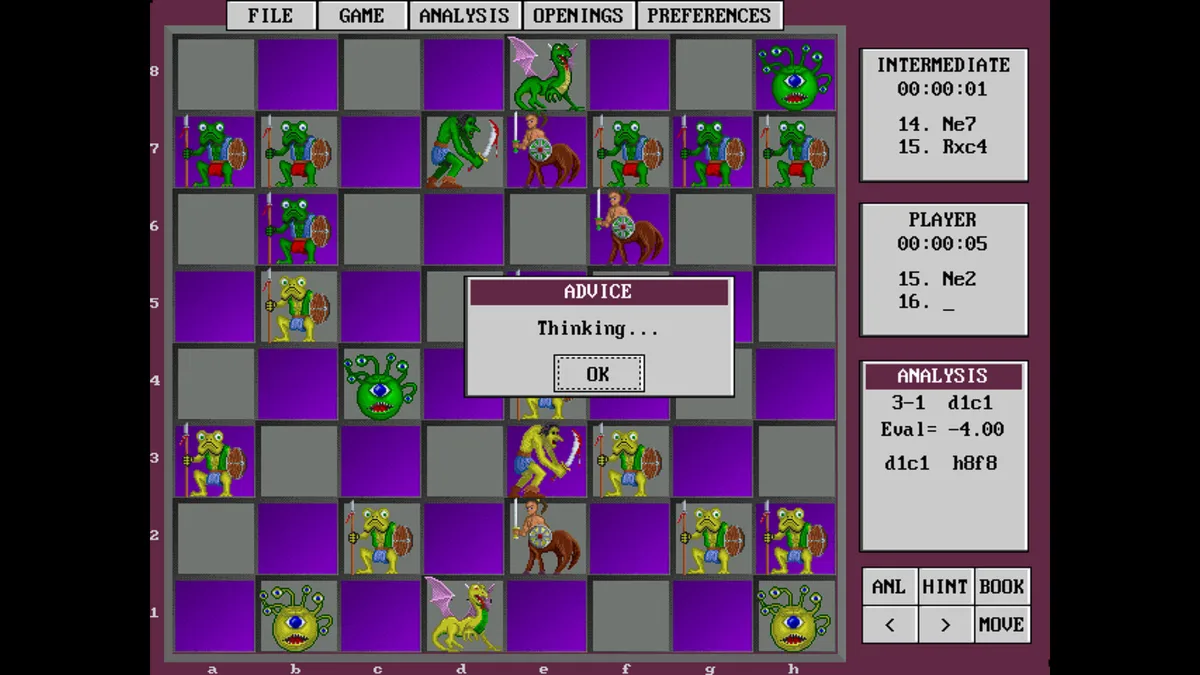
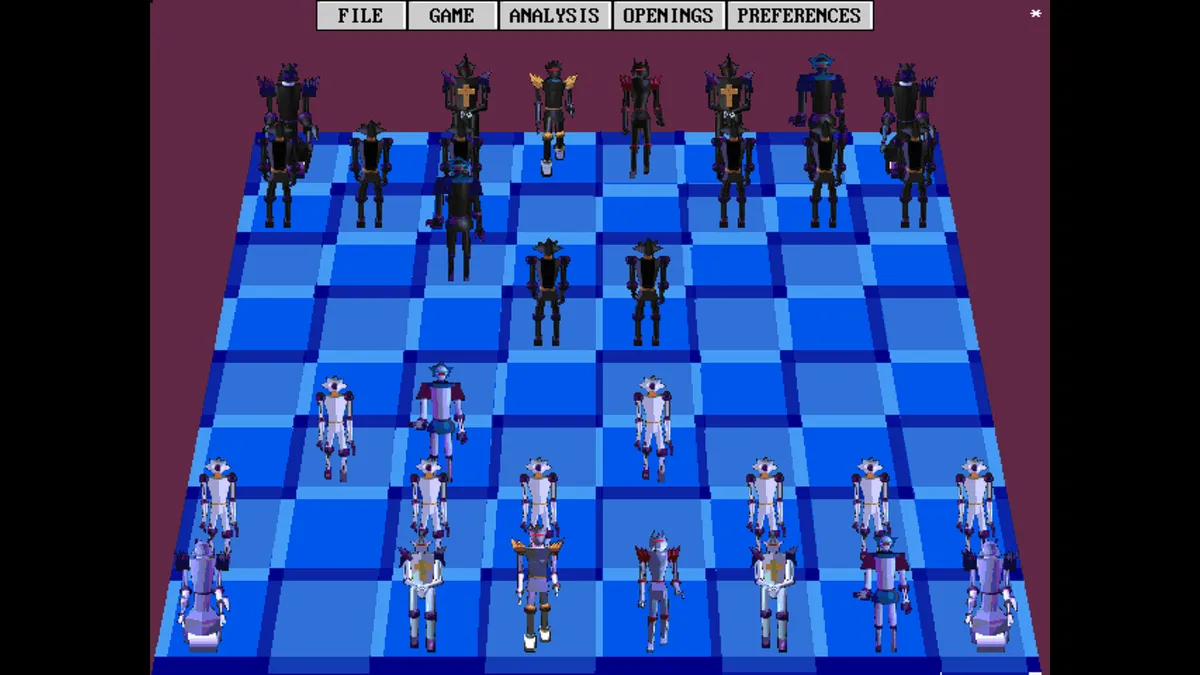
Open the Preferences tab to change the board’s presentation, choosing between 2D and 3D views as well as different surfaces and piece sets. There are eight board surfaces, with marble, glass and wood among the options. The seven piece sets include monsters, robots and abstract designs, so customization extends to the pieces themselves rather than just the board beneath them. These are separate aspects of the visual setup: the view determines whether the presentation is two- or three-dimensional, while the surface and set selections determine its materials and piece designs.
The Preferences tab also provides access to blindfold chess, giving this menu a purpose beyond selecting a visual style. The mode tests notation visualization skills: its focus is on visualizing chess through notation, rather than choosing a particular board material or themed set. That distinguishes it from the marble surfaces or robot pieces available elsewhere in the same tab. For this section of the setup, the practical choice is between adjusting the visible presentation and entering the dedicated blindfold exercise.
Navigating Menus and Keeping Match Records
Grandmaster Chess does not use the mouse for gameplay or menu navigation, so clicking through its menus is not the way to manage a match. The File tab collects the commands for keeping saved games. Choose Save Game, select a directory, and store the game’s save file there; if no directory exists, you can create one. Multiple games can share a single directory, rather than each requiring its own folder. To retrieve a match, choose Load Game, open the directory containing it, and then open the desired save file. Delete Game removes games and directories.
The File tab also distinguishes saved games from text records of their moves. Export Game converts a game’s moves into a text file, which you can view in the game’s local Grandmaster Chess/C directory. Import Game works in the other direction, bringing in a game from a text file. For keeping records, these are separate commands from Save Game and Load Game: export produces move text, while saving places a game file in your chosen directory. The same menu includes Save Settings for retaining the current settings and Quit for exiting the application.
Sources & further reading.
- Grandmaster Chess — official game profileRetrieved Nov 19, 2026
- Grandmaster Chess — official game profile — publisher-supplied gameplay manualRetrieved Nov 19, 2026
First published .