 THE GAME ARCHIVE
Starting a Career: Country Selection, Clubs and Changing Jobs
Starting a career in Premier Manager 06/07 begins with entering your name and choosing a nationality before selecting a club. The keyboard icon opens a virtual keyboard; select the letters, then finish with Done. Nationality is selected with the left and right arrows. Country selection sets the scope of the career: you can run up to four of the six available countries, with full match and player data available for those running alongside your own. Running more countries also means processing more information at the end of each day, so updates may take longer.
That country configuration remains fixed unless you restart from scratch, but your employment can change during the season, including moves between countries. On Team Select, use the left and right arrows to browse countries and divisions, then click the list to scroll through clubs; Confirm begins your career at the selected club. Later, Management Jobs lists the available vacancies. Selecting Apply arranges a meeting with that club’s chairman, where securing the position depends on your negotiation skills. Choosing a starting club and obtaining a subsequent job therefore use different procedures: the former takes confirmation, while the latter requires a successful negotiation.

Meetings and the Management Clock: Responses, Requests and Next Day
Meetings control the pace of the management day: every request on the Home Screen must be cleared before time can advance. During a conversation, click the left and right arrows to move between up to four possible replies, with different responses leading to different possible outcomes. Once the meeting list is clear, Next Day appears at the top right; clicking it advances time. The Chairman screen also provides four specific requests: a new contract for yourself, more team-building funds, extra time to assemble the side, or resignation. Choosing resignation arranges the meeting in which you leave your job.
The Chairman screen shows his confidence in you, his expectations and his willingness to put more money into transfers, giving those requests a financial and employment context. During the close season, Fast Forward offers a different way to move the calendar, skipping through the game rather than advancing with Next Day. That shortcut withholds messages and information for the skipped period, so offers for your players can pass without reaching you. Press Resume to return to the game while forwarding is underway; otherwise, the process stops before your team's first game. Faster calendar movement therefore comes with a specific loss of incoming information.
Preparing the Squad: Starting Eleven, Tactical Roles and Weekly Training
Preparing the starting eleven begins on Line-up, where you hold the left mouse button on a player and drag to the replacement to change the selection. The player list also marks two reasons someone cannot play: a red cross means injury, while a red card means suspension. Use the left and right arrows to browse the relevant player statistics when reviewing the squad. Formation and playing style are handled separately under Tactics, again through left and right arrows. Selecting the players and setting the team's tactical arrangement are therefore distinct parts of preparing the side.
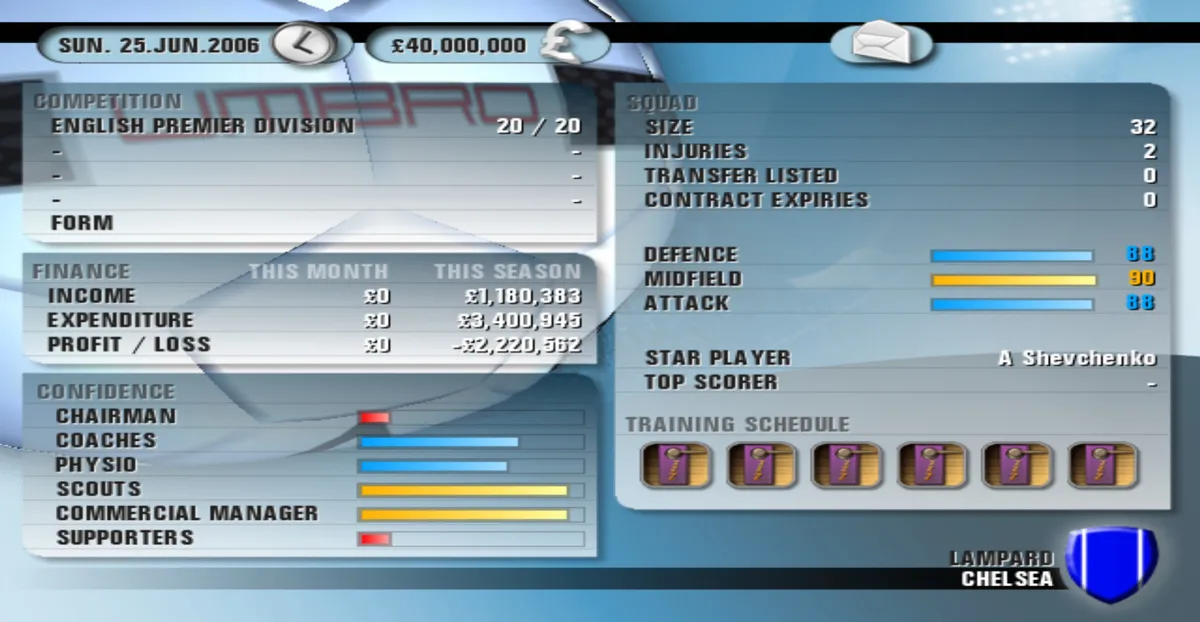
Roles covers specific assignments rather than the formation itself: choose the club captain and designate the players who take set pieces, including corners and free kicks. Clicking the arrows changes the selected player for these duties. The Training screen works on a different timescale, letting you arrange the regime for the coming week. To change one portion of a day, click that section of the schedule; the screen then displays the available sessions. Choose the session you want by clicking its icon. Weekly preparation thus includes both named match responsibilities and training sessions assigned to individual portions of the timetable.

Finding and Managing Players: Scouts, Shortlists and Contract Decisions
Player Search begins with Search Filter: use the left and right arrows to set the criteria, then select Go to display matching players. Double-click a name to open the player's factfile, where the available options include buying, shortlisting, scouting and arranging a loan. Scouting has its own follow-up screen: Scouted Players holds information on watched players, and selecting Report in a player's factfile opens the scout's assessment. You can also ask the Scout to look for talent in a particular team or country, or request a report on forthcoming opponents rather than an individual recruitment target.
Shortlisted Players keeps track of footballers you have shortlisted or already made offers for. When another club bids for someone on that list, a notification gives you the opportunity to make a counter-offer, connecting your saved targets with competing transfer activity. For players already at your club, the factfile provides different decisions: transfer-list them, discuss their contracts, release them on a free contract or request reports. Recruitment is not limited to outside signings, either. Request a meeting with the Youth Coach to discuss the club's best young players and the possibility of promoting them into the first-team squad.
Sources & further reading.
- Premier Manager 06/07 — official game profileRetrieved Nov 16, 2026
- Premier Manager 06/07 — official game profile — publisher-supplied gameplay manualRetrieved Nov 16, 2026
First published .