 THE GAME ARCHIVE
Chairman Requests, Staff Contracts and the Daily Meeting Queue
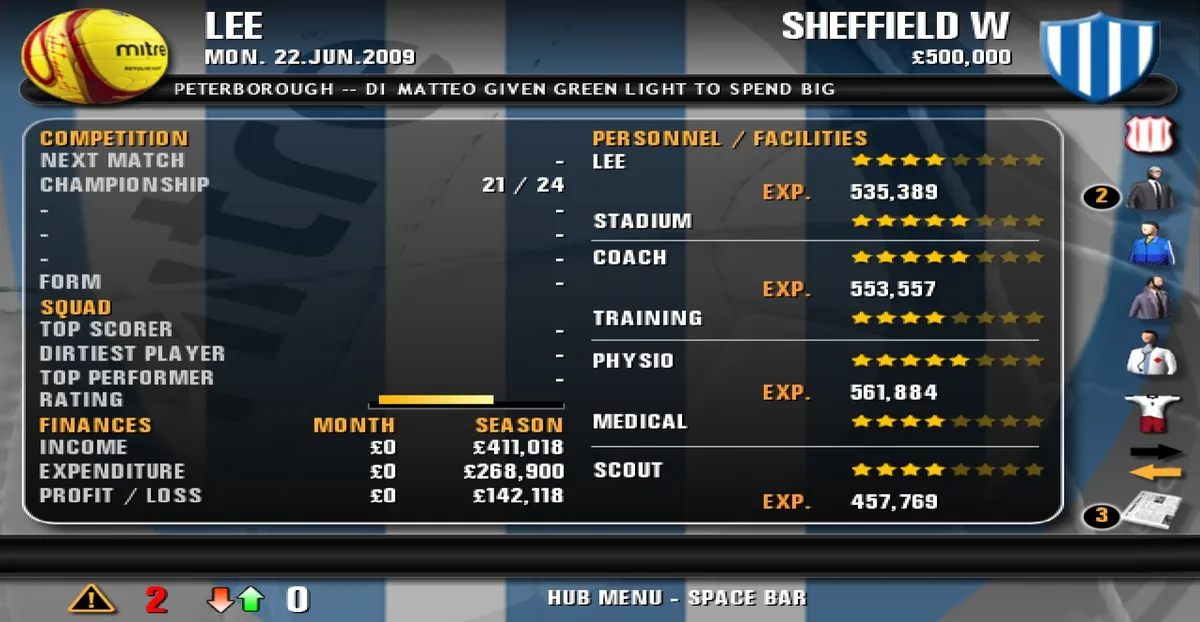
Premier Manager 10 puts incoming business on the character bar at the right of the screen, with entries for the chairman, coach, scout, physio, players, club and press. An illuminated icon signals news or a request, while its number shows how many messages are waiting. Conversations can present as many as four replies; use the left and right arrows to move between answers, which can produce different outcomes. These meetings also govern the calendar: every meeting request must be cleared before time advances. Only then does the Next Day or Match Day option appear at the bottom right.
The same character icons also provide actions you can initiate, rather than just messages to answer. Right-click the chairman to choose between requesting a new contract, asking for more money, pleading for additional time or resigning. Staff have a separate set of options: the coach, physio and scout can each receive a new contract offer or be fired. The coach and physio also accept instructions to handle task assignment automatically. That delegation concerns their assignments, while the calendar still requires every meeting request to be cleared; it does not replace the separate step of dealing with the meeting queue.
Training Slots, Character Development and Facility Upgrades
Training assignments are organised by goalkeepers, defenders, midfielders and attackers, with the coach’s skill level setting the number of available slots. On the Tasks screen, click a highlighted slot to edit it, then use the left and right arrows to browse categories including goalkeeper, physical, outfield and tactical. Delete All clears the assignments. Slot capacity is only part of the calculation: the coach’s skills and characteristics combine with training centre efficiency to determine potential points per player. Check the central formula alongside the player list, which shows how many coach points each player can receive and indicates who will improve.
Assigning tasks also builds character experience across eight levels, with each level gained unlocking another task slot and facility set. Frequent skill use grants a temporary bonus that fades when unused. Development and task speed depend on Perception, Willpower, Memory, Intelligence and Charisma; each skill links to primary and secondary characteristics. Training centre upgrades add another consideration: facilities have a primary bias, sometimes a secondary one, to support particular training plans. Double-click a catalogue entry to request purchase, but the chairman can refuse because funds or coach experience are insufficient. Under Construction displays the new facility and its scheduled completion.
Searching the Transfer Market and Researching Locked Player Data
The Market screen separates recruitment from your existing squad by listing players available for sale, on loan or on a free transfer. Press Filter to change the displayed selection, move through the options with the left and right arrows, then press Go to run the search. Double-clicking a player opens his fact file; the same action also opens club, staff, competition, country and match files elsewhere. For players controlled by the computer, the available options include buying, shortlisting, researching and arranging a loan, so finding a name is only the beginning of examining a potential signing.
Most information about computer-controlled players initially appears behind padlocks. Use research to unlock that data rather than treating the first view of a candidate as a complete report. The scout’s efficiency determines how long full research takes, connecting the information available on a target to the staff member doing the investigation. During that process, you can check both whether the scout considers the player suitable for your club and how certain he is of that assessment. These are distinct things to read: his opinion of the fit and his confidence in that opinion.
Picking the Starting Eleven, Adjusting Tactics and Reviewing Matches
The Tactics screen separates team selection from the instructions given to that team. In Line-up, choose the starting eleven by clicking and holding a player, then dragging to make a swap. Formation sets the side’s attacking or defensive focus, while Instructions covers playing style and marking, including counter attack, long passing and zonal marking. Use the left and right arrows to change these settings. Roles handles individual responsibilities: select the captain and assign the players who will take corners, free kicks and penalties. Those appointments sit alongside the formation and instructions rather than replacing the starting-eleven selection.
During a match, open Options to start or stop play, alter game speed or adjust tactics. The Tactics button lets you revise the line-up and playing style, but the match continues until the ball goes out of play before that menu opens. Press Pitch to watch the action in Pitch View, or consult Overview for shots, corners, fouls and the main areas of action. For a later review, return to Fixture Schedule, which lists the club’s fixtures for the current season. Double-click a completed game to open its match report, keeping past results accessible separately from the live match controls.
Sources & further reading.
- Premier Manager 10 — official game profileRetrieved Nov 16, 2026
- Premier Manager 10 — official game profile — publisher-supplied gameplay manualRetrieved Nov 16, 2026
First published .