 THE GAME ARCHIVE

Against the Clock: Challenges, Task Unlocks and Recorded Runs
Trucks & Trailers divides its driving test into 50 individual challenges, with the clock running in every task. The objectives include reversing a trailer around obstacles, arranging trucks and trailers in their assigned yard positions, and parking precisely. These are timed assignments rather than a single continuous journey: you choose an attempt from the task list, then work through its particular requirements. Only easy tasks are available initially. Completing tasks unlocks further ones, so the list of available assignments expands through completion. The timer applies throughout that progression, giving both the opening tasks and later unlocked assignments a time-based objective.
Each task attempt is recorded automatically, and the Replay Manager lets you organize and export those recordings. Clicking Export saves the selected replay to Documents\Trucks&Trailers\replay. You can share the exported file with friends to compare results and review driving performance visually. Replays received from friends appear in the game's top result lists when copied into that same folder.
Yard Work: Reversing Trailers, Coupling and Precision Parking
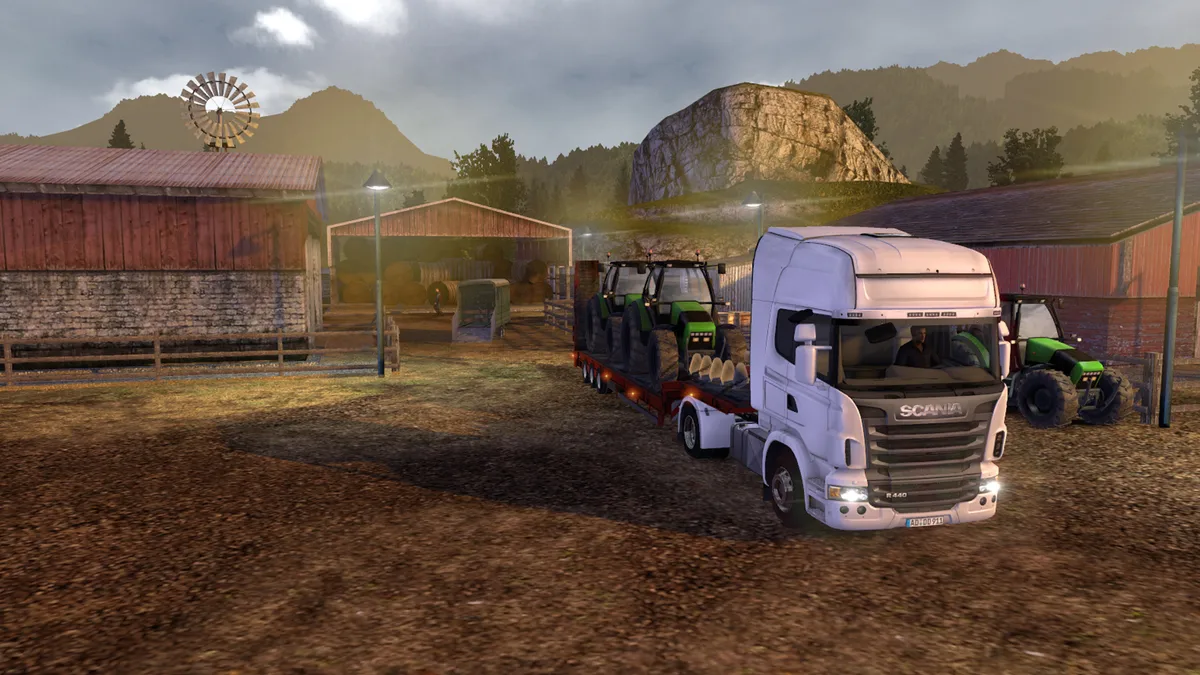
Trailer handling includes a dedicated coupling command: T attaches or detaches the trailer. That gives yard work a specific operation beyond driving the truck into place, alongside assignments concerned with positioning both trucks and trailers. Reversing tasks also require avoiding obstacles with the trailer, rather than simply getting the cab past them. Before attempting a task, the Truck List lets you select the truck you want to drive; a separate Truck Colour setting changes its colour.
Precision parking is not solely a question of reaching the assigned location. The manual describes parking requirements that include both correct position and correct facing, making the truck’s final orientation part of the objective. Yard-sorting assignments likewise ask for a series of trucks and trailers to occupy their correct positions, rather than treating the yard as a single destination. Together, those requirements distinguish moving equipment around the yard from finishing its placement: where a vehicle ends up and which way it faces are separate parts of accurate parking.
Inside the Cab: Pro Camera Limits, Mirrors and Dashboard Feedback
At the highest difficulty setting, Trucks & Trailers disables external camera views, leaving you to maneuver from inside the cab using its mirrors. The restriction concerns what you can see: an outside viewpoint is no longer available to check the truck’s surroundings. Wing mirrors have their own display toggle, assigned to F2 by default, which switches the on-screen mirrors on or off. That display setting sits alongside the difficulty rule rather than removing it: switching mirrors off does not restore an external camera. With outside views disabled, the mirrors provide the documented means of looking beyond the cab while maneuvering.
The default Inside view also places the vehicle’s gauges within the cabin itself, as working parts of the dashboard. They report the vehicle’s current state, keeping that feedback in the same interior view used for driving. Separate on-screen messages supply notifications and helpful hints during a drive, so dashboard readings are not the only information presented from behind the wheel. Mirror display also carries a performance caveat: the manual warns that enabling wing mirrors can cause substantial slowdown on less powerful computers, and suggests switching them off when unnecessary on systems barely meeting the minimum requirements.
Hands on the Controls: Input Setup, Brakes and Cruise Control
Trucks & Trailers defaults to keyboard-only input, with keyboard-and-mouse and keyboard-and-controller combinations also supported. To add a steering wheel, joystick or gamepad, connect the device, start the game and select it from the box at the top of the controller options. That selection can override some keyboard actions, particularly steering, so activating a controller may leave the corresponding keys inactive. Key assignments are separately adjustable through Options, then Keyboard: click the action you want to change and enter its replacement key. Device selection and key remapping therefore occupy distinct parts of the setup.
The default vehicle commands give the parking brake and motor brake separate keys: Space operates the former, while B operates the latter. E starts or stops the engine, and C handles cruise control. To use cruise control, first reach the speed you want to maintain, then press C to engage it. Returning to normal driving does not require that same key: either toggle cruise control off or accelerate or decelerate to cancel it. These are the default assignments rather than fixed bindings; the Keyboard menu lets you reassign the actions, including the brake and cruise-control commands.
Sources & further reading.
- Trucks & Trailers — official game profileRetrieved Nov 5, 2026
- Trucks & Trailers — official game profile — publisher-supplied gameplay manualRetrieved Nov 5, 2026
First published .