 THE GAME ARCHIVE

Team Construction: Colors, Players and Position Settings
4th & Inches opens at the Team Construction Disk menu, putting team editing before entry into the main game. From here, you can view or change teams, adjust team colors, and modify individual players. The menu therefore covers both the team's appearance and its personnel, rather than limiting construction to a color selection. Use the arrow keys or numeric keypad to move through menu choices, then press Enter to select an option. When your changes are finished, return to the main Construction Disk menu and select Play 4th & Inches to enter the game.
Within the Modify screens, position and player type are the two main settings identified as relevant to gameplay. Their placement gives you a concrete way to locate them: position sits at the far left, while player type appears at the far right. When modifying an individual player, focus on those two ends of the screen for the gameplay-related parameters, rather than treating team colors as the whole construction process. Team editing thus operates at two distinct levels: you can change the team and its colors from the construction menus, or work on a player's position and type within Modify.
Calling Plays and Taking Control on Offense and Defense
Play calling in 4th & Inches uses a direction followed by the fire button. To choose a play, press the direction associated with it, then press fire to confirm. The circle option is the exception to the directional step: leave the direction neutral and press fire. That makes the absence of directional input part of the selection scheme, rather than a separate command. Once play moves onto the field, the fire button also handles actions including throwing and kicking, so its function extends beyond confirming your choice in the play selection process.
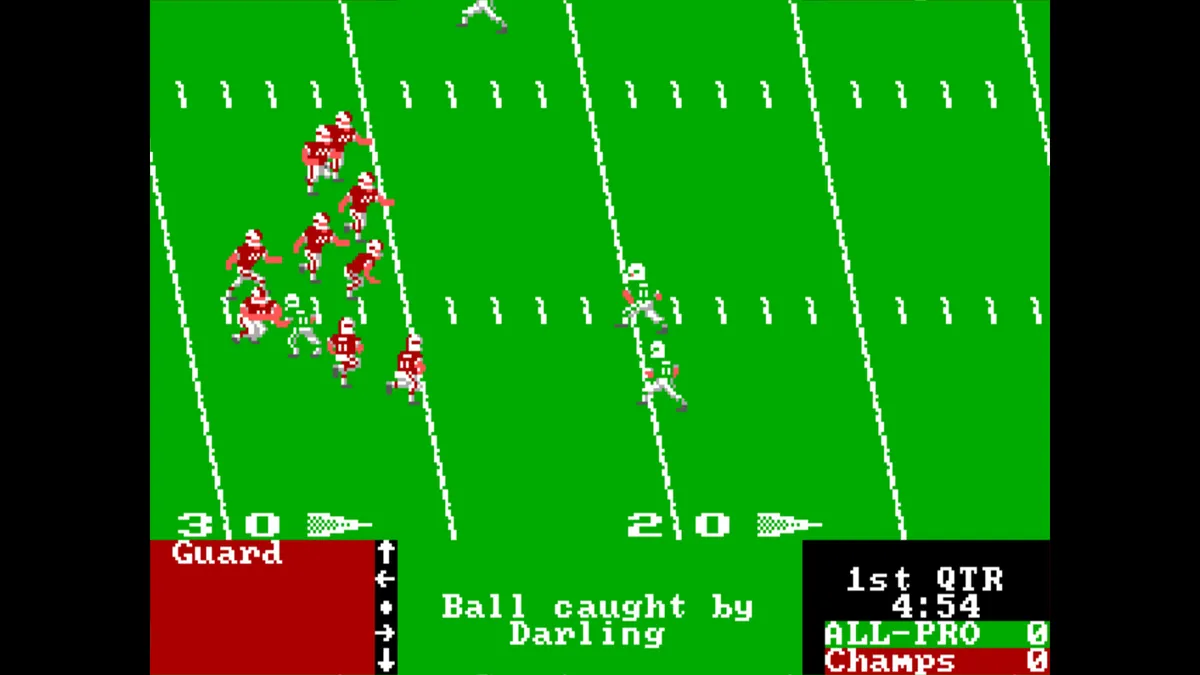
On offense, you take the quarterback's role and read the defense; on defense, you control a key player whose task calls for speed, stamina and judgment. The football action includes long passes, blitzes and goal-line stands, putting both attacking and defensive situations into the on-field game. Play selection supplies the tactical side, while taking control of a player supplies the execution: calling a play is only one part of the job. The shift between quarterback and defensive player also changes your role, from reading the opposing defense to participating in it.
Match Setup: CPU Opponents, Local Two-Player and Quarter Length
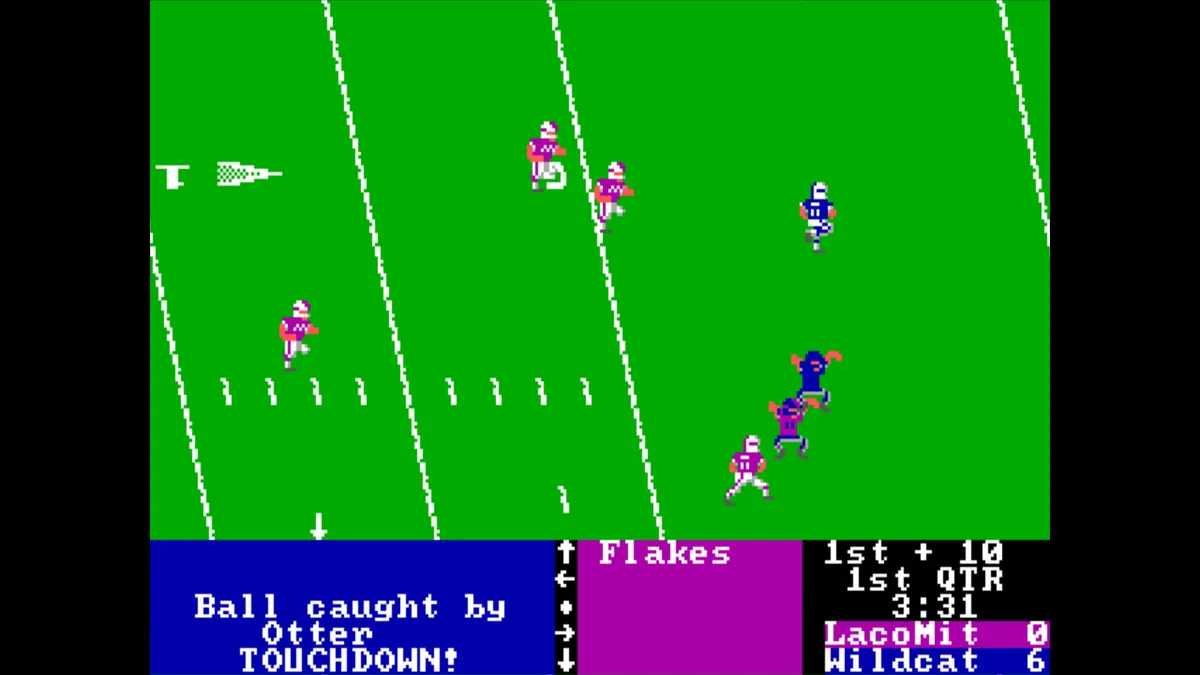
4th & Inches supports games against the CPU and local matches with a second player. To toggle two-player mode, highlight the team names on the main menu, then press either G or Numpad0, the fire buttons used for this setting. The control assignment depends on the mode: a solo player can use either the keyboard or numeric keypad, while a two-player game assigns the numeric keypad to Player 1’s team and the keyboard to Player 2’s team. Setting up a local match therefore involves both switching the mode at the team names and using the assigned controls for each team.
Quarter length is also set on the main menu, but it has its own highlighted option. Move to the minutes-per-quarter setting and press G or Numpad0 to toggle the length. The same two fire buttons thus handle both match settings, with the highlighted menu item determining which one changes: team names for two-player mode, minutes per quarter for quarter length. When preparing a match, treat those as separate selections rather than trying to change both from the team names. Opponent setup and quarter duration share an input method, but each requires selecting its corresponding part of the menu.
The Coach Menu's Five-Yard Penalty and In-Game Adjustments
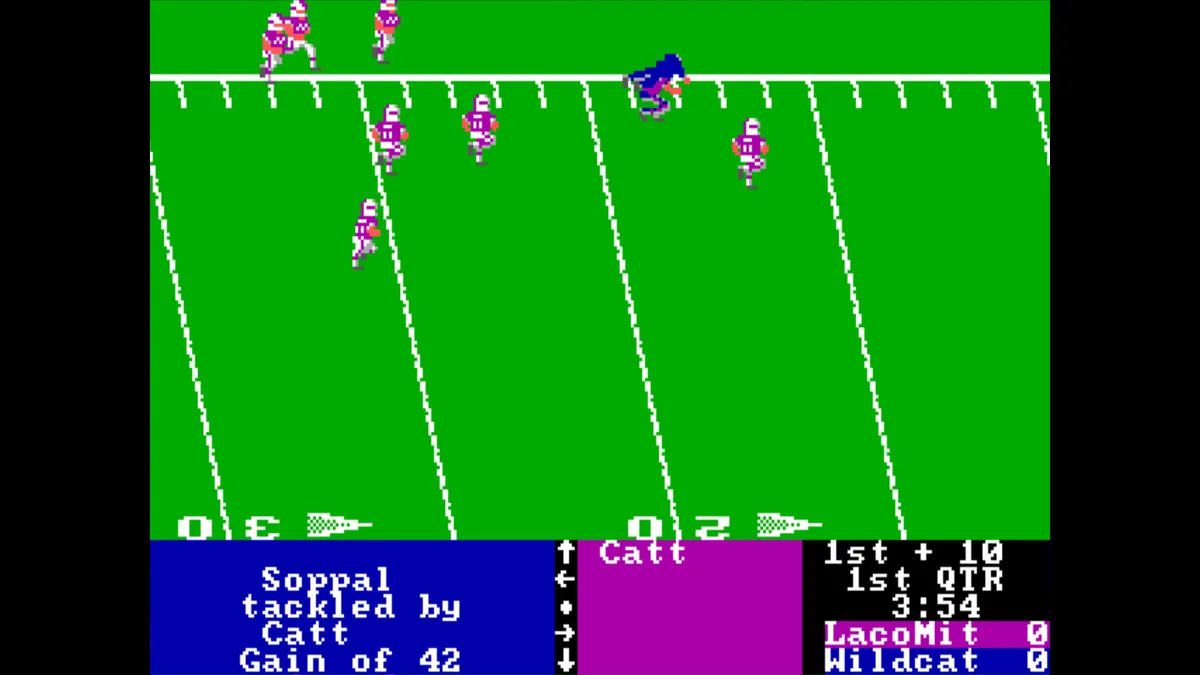
Press Space Bar to open the Coach Menu, but keep track of whether plays have already been selected: opening it after that point incurs a five-yard penalty. The same menu contains the game-speed adjustment, operated with the numeric keypad’s plus and minus keys. These rules connect a settings change to the state of play. If you open the Coach Menu to adjust speed after play selection, the five-yard penalty still applies; the reason for entering the menu does not remove that cost.
Two function keys handle sound and reset in 4th & Inches: press F9 to toggle sound on or off, or press F10 to reset the game and return to the main menu.
Sources & further reading.
- 4th & Inches — official game profileRetrieved Nov 18, 2026
- 4th & Inches — official game profile — publisher-supplied gameplay manualRetrieved Nov 18, 2026
First published .