 THE GAME ARCHIVE
Jumpgates, Khador Drive and Getting Around the Galaxy
Inside a star system, travel is handled by marking a planet with the crosshairs; once the dock button appears, clicking it engages the autopilot and sets a course for that destination. The autopilot menu lists the most important locations in the current orbit, including stations, jumpgates, waypoints and asteroid fields, and while it is active the ship flies itself without manual steering. A fast-forward function provides time compression during these journeys. Reaching a different star system, by contrast, cannot be done this way and calls for a jumpgate or the Khador Drive.
The two interstellar options work differently. Jumpgates only connect the current system to adjacent ones, so a long route is flown gate by gate. The Khador Drive instead permits direct travel to any place in the galaxy, skipping the chain of intermediate systems. These methods sit within a wider sandbox spanning more than 20 solar systems and 100 space stations, where the same ship can be used for mining asteroids, trading ore and supplies, taking mercenary missions, working as a pirate, or transporting valuable goods between star systems. The Steam product date for this release is 2012.
Mining Asteroids With a Drill and Reading the HUD
Mining starts with a drill installed on the ship. To begin, the pilot holds an asteroid in the crosshairs until the dock button appears, then docks with the rock. Inside the asteroid, the drill must be kept within the stone layers for as long as possible; if the drill strays too far outside the formation, the asteroid takes damage and will eventually explode after a certain amount of time. An explosion destroys all ore extracted up to that point. The scanner helps locate valuable cores, marking asteroids on the HUD before docking, which makes the search for rare and valuable cores easier.
The crosshairs also mark objects of interest, allowing the autopilot to set course for them or to pull up further information. The scanner displays the positions of important objects such as other ships, freight containers and jumpgates, and it can scan other ships to reveal their cargo, faction and hull condition by holding a target. Space stations anchor most orbits and serve as hubs: in the hangar a pilot can work on the ship or buy goods and equipment, the space lounge holds potential employers, and the map supports route planning. Missions and status are also reviewed at stations.
Reputation, Docking Rights and Space Lounge Diplomats
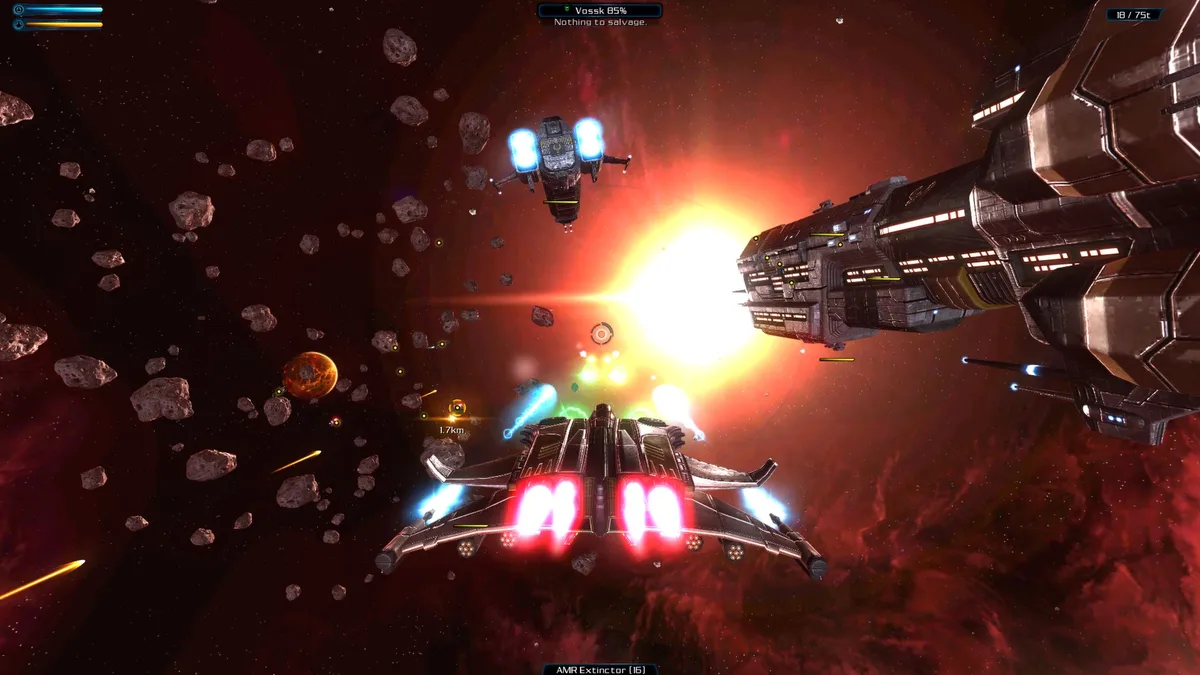
The Status panel is where a pilot reads faction reputation alongside other statistics. Reputation governs political dealings with the other factions, so a pilot who has earned a faction's wrath or distrust will find docking at that faction's space stations difficult unless the commander in charge is bribed. Two routes restore standing: completing missions for the offended faction, or fighting against its enemies. A third option sits in the space lounge, where a diplomat can be found and paid a set number of credits to help improve reputation.
Progression beyond reputation is tracked through medals, viewed by clicking the Medals button, which shows achievements already won and those still missing. Medals are awarded for a wide variety of actions, and whether a task earns bronze, silver or gold depends on how well it was fulfilled within its category. The award names themselves hint at what must be done to earn them. Elsewhere, progression includes unlocking new ships and improving equipment.
Weapons, Shields and the Cloak in a Dogfight
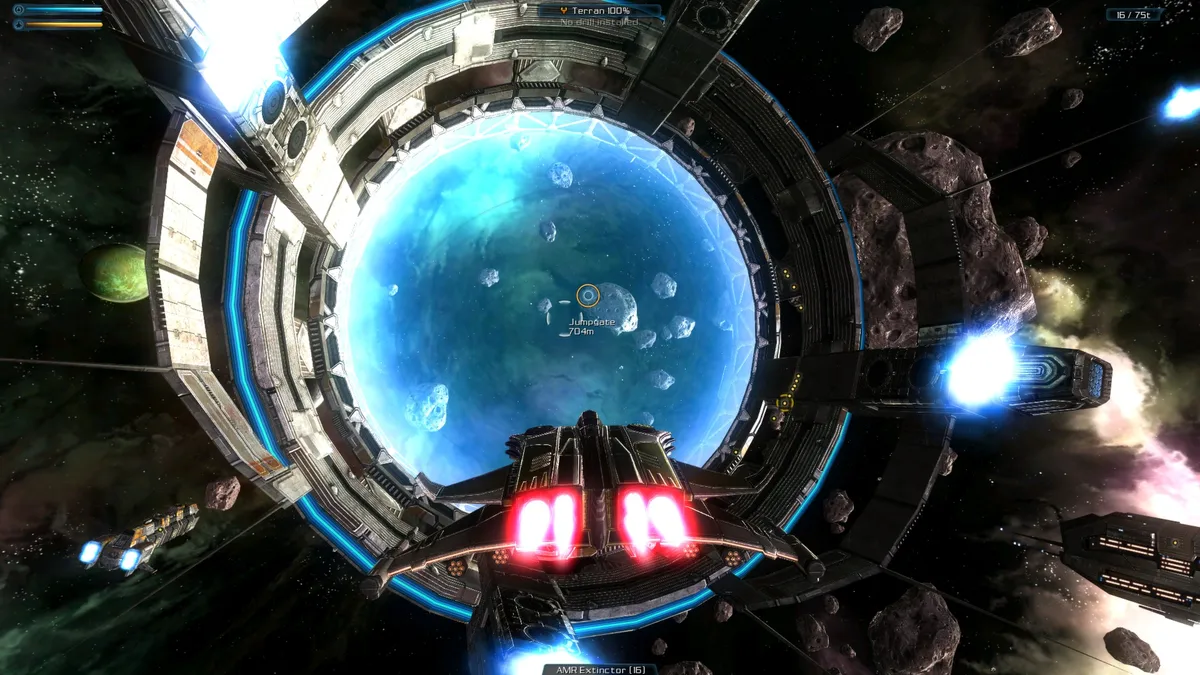
Dogfights in Galaxy on Fire 2 Full HD center on a two-tier weapon setup: primary fire on one input and secondary fire on another. On the keyboard, Space handles primary fire while R launches the secondary weapon, and the Action menu lets the pilot swap which secondary weapon is loaded. Xbox 360 gamepad users press A for primary fire and B for secondary, with Back opening secondary fire selection. Combat also tracks two separate defensive bars. The shield bar shows the strength of the installed shield, and the time it takes to refill depends on that shield's tech level, while the hull bar shows the ship's structural condition and does not refill in space unless a Ketar Repair Bot is carried onboard.
The cloak enters the fight as an evasion tool, and it must be equipped before it can be used. Pilots trigger it with C on the keyboard, X on an Xbox 360 gamepad, or through the on-screen Action menu, which also lists changing the secondary weapon and activating the Khador Drive. Because the shield's recharge time is tied to its tech level and hull damage only recovers with a Ketar Repair Bot, cloaking buys time rather than rebuilding either bar. The same Action menu that activates the cloak also hosts the Khador Drive, so evasion options sit alongside one another.
Missions, Trading and the Open Sandbox
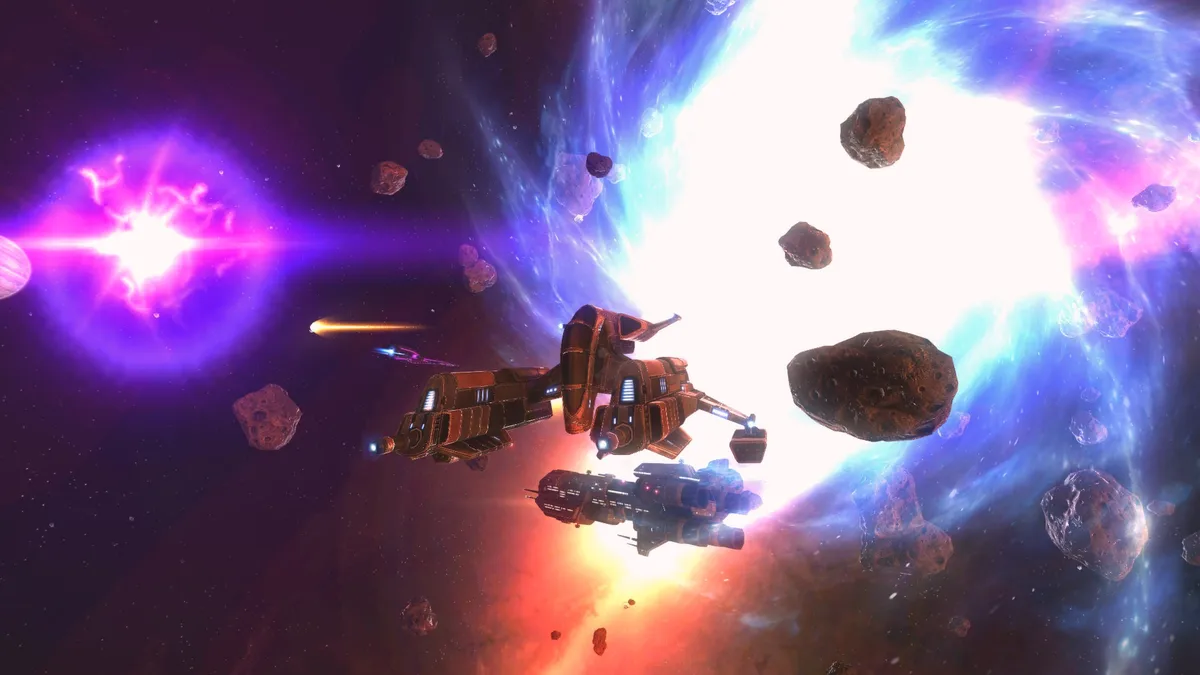
Missions come in two broad forms. The story campaign follows a set narrative, sending the pilot to investigate alien threats and rescue VIPs while uncovering plot details, and the main storyline alone spans more than 10 hours. Freelance work sits alongside it: escorting convoys under pirate attack, capturing intergalactic criminals, and transporting valuable goods between star systems, with rewards and reputation changing according to how well each job is carried out. The sandbox option drops the narrative constraint, leaving open exploration, trading, mining and mission selection, and mining asteroids, trading ore and supplies, working as a pirate and manufacturing weapons and equipment are all available as self-directed pursuits.
Trading rests on a market of more than 170 different commodities, with prices moving according to supply, demand and faction influence. Ships themselves are bought and customized, with over 30 types available, and equipment can be fitted with weapons and shields; blueprints extend this into manufacturing, since starting production requires selecting a blueprint, reviewing the resources it needs, and transferring stocked materials from the cargo hold into the build. A finished item is collected at the station where production began, and a blueprint shown in green means some required ingredients are already on hand.
Sources & further reading.
- Galaxy on Fire 2™ Full HD — official game profileRetrieved Oct 27, 2026
- Galaxy on Fire 2™ Full HD — official game profile — publisher-supplied gameplay manualRetrieved Oct 27, 2026
First published .