 THE GAME ARCHIVE
Exploring 360-Degree Scenes and Reading the Cursor
Zork: Grand Inquisitor uses Z-Vision to present a full 360-degree view from almost every position. Pan left and right with the mouse to inspect the surroundings; a single panorama can contain several places or objects to interact with. The keyboard’s arrow keys also support left and right panning, although interactions still require the mouse. In Preferences, the Pana-view setting adjusts rotation speed across a 0–100 range, with slower panning producing a crisper scene. A separate Pana Animations toggle controls whether animations play during rotation, letting you adjust that part of the panoramic presentation independently.
As you scan a scene, watch the navigation cursor rather than treating every visible detail as something you can operate. The default Idle Arrow marks a selected object or location where interaction is unavailable. When it changes into the glowing Active Arrow, the selected area accepts interaction: a left click can perform actions such as opening a door or pressing a button. That glow can also signal a location where an inventory item can be used, rather than only a fixture to operate directly. Reading the cursor therefore distinguishes scenery from interactive areas while you inspect the panorama.
Casting Rune Spells and Managing Puzzle Objects
Spellcasting begins with memorization: click a spell in the spell book, listen to its chant, and the book closes as the cursor becomes that spell’s rune. Click an object with the rune to cast, including objects held in your inventory. A successful cast produces a visible or audible effect, but spells remain memorized only temporarily. Protection can block a cast: doors at headquarters cannot be Rezroved because of the Frobozz Electric Magic Repellent. The spell bar offers another way to memorize spells by clicking their runes. Finding scrolls expands the book automatically through its auto-Gnusto system, though some complex spells can be cast only once.
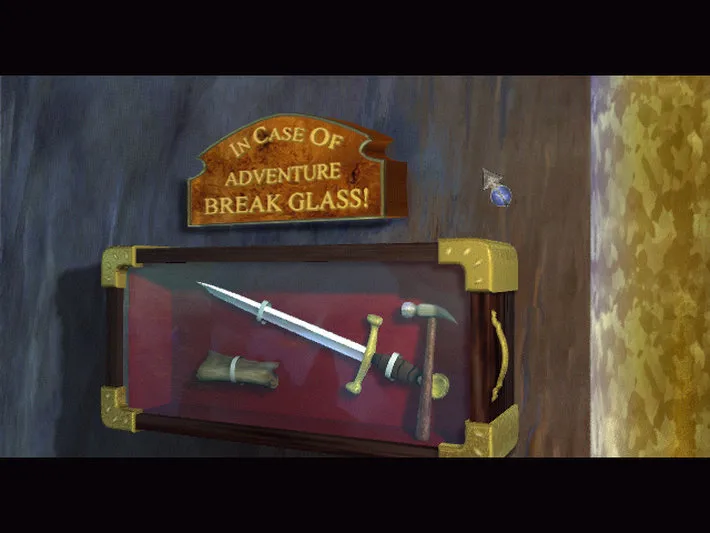
Items you pick up go into an inventory bag, opened by right-clicking or pressing F5. The inventory screen’s left half stores basic objects, and picking up an item replaces the navigation cursor with its picture. For quick access outside the inventory screen, move the cursor to the upper-left corner to reveal a bar displaying sixteen current objects. You can pick up or drop items on this bar, but objects in the sack’s bottom row are not shown.
Finding Three Artifacts, Mapping Routes, and Earning Ranks
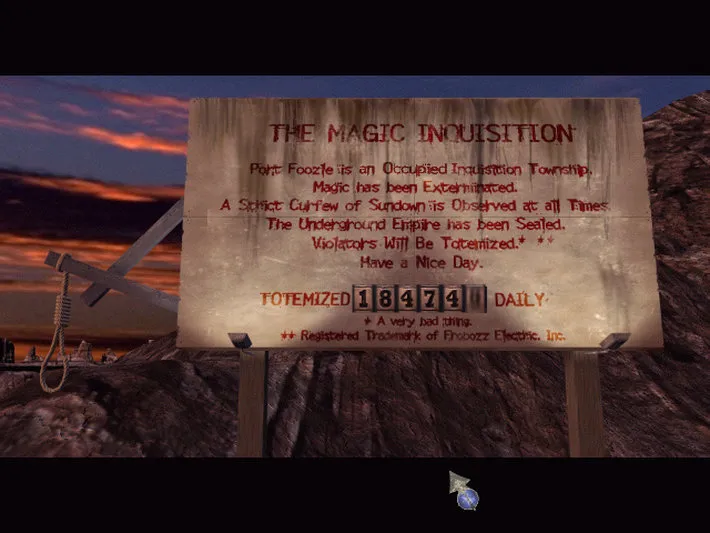
Restoring magic to the Underground Empire means finding three hidden artifacts: the Coconut of Quendor, the Cube of Foundation, and the Skull of Yoruk. That search takes place under Grand Inquisitor Mir Yannick’s ban on magic, with the Empire sealed off and the mystic arts punishable by Totemization. Dungeon Master Dalboz joins you in the search. These three named objects give the journey its larger objective: restoring magic requires recovering the artifacts, rather than simply reaching a particular score or earning a rank.
For travel between locations, find a map and use it at teleportation stations throughout the Underground. The map updates automatically as you explore, linking its coverage to the places you have visited. Progress also has a separate numerical record: press F7 to open the score screen and check the points awarded for completed tasks. The game offers 1,000 points in total and assigns ranks according to your score, starting you as a PermaSuck Salesperson. The map records exploration, while the score screen tracks task completion through points and rank.
Linked Play: Sharing Puzzles as Driver and Commentator
Linked Play divides cooperative exploration between two roles rather than giving both players the main cursor. The Driver controls that cursor, while the Commentator uses a separate Look-Over-Here cursor to point out places or objects for the Driver to investigate. This lets one player indicate a proposed interaction while the other carries it out. The roles can be switched, so the same person need not remain responsible for operating the game throughout a session. The documented connection options are an internet connection, a modem, or a local area network, linking two players for exploration of the Underground Empire.
The division of control also governs saving: a Commentator who wants to save must first become the Driver to access the Save Game screen. Linked Play saves can then be used in single-player mode. To end the connection and continue alone, click the Chain button or press Ctrl-W. Alongside the cooperative pointing system, the mode includes ten prerecorded audio taunts, triggered by holding Ctrl and pressing the number keys from 1 through 0; the online Technical Help lists them. These are separate from the Look-Over-Here cursor used to direct the Driver’s attention.
Sources & further reading.
- Zork: Grand Inquisitor — official game profileRetrieved Nov 4, 2026
- Zork: Grand Inquisitor — official game profile — publisher-supplied gameplay manualRetrieved Nov 4, 2026
First published .