 THE GAME ARCHIVE
Exploring Locations and Putting Objects to Work
Exploring in Eric the Unready combines movement between locations with inspection of the objects pictured there. Click the compass rose to travel, then single-click an object in the scene to look at it. A double-click instead performs an interaction, such as taking the object or opening or closing it. Looking and acting are therefore distinct uses of the same pictured object, rather than interchangeable clicks. The inventory provides a separate account of what Eric is wearing and carrying, distinguishing possessions from the objects visible around him in the current location.
Objects collected during those travels also supply material for puzzle solving. The manual identifies creative thinking and clever uses of acquired objects as frequent keys to resolving situations, so taking an item is not necessarily the end of its role. The inventory records the things Eric carries or wears; the puzzle rules give those possessions a purpose beyond collection. Successful puzzle solutions earn points, and the score serves as a measure of progress. That makes the reward tied to solving the situations encountered, rather than simply describing how many objects Eric has gathered.
Dialogue Menus and Point-and-Click Commands
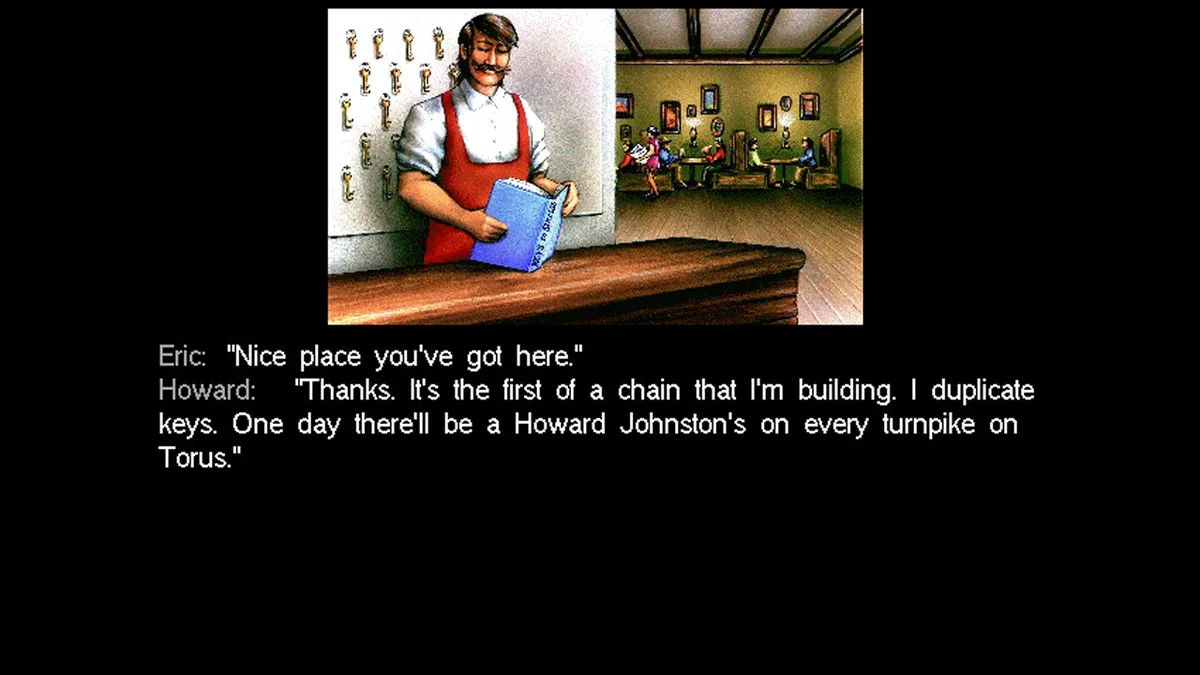
Conversation in Eric the Unready begins with a menu of questions rather than a question you must compose yourself. Double-click a person in the picture window to open that list, then click the question you want to ask; the character's reply appears afterward. The keyboard offers another way into the same exchange: type TALK TO CHARACTER to display the questions, then use the arrow keys to move through them. Both methods separate starting a conversation from choosing its subject. Selecting the person opens the available questions, while selecting a question requests the corresponding response.
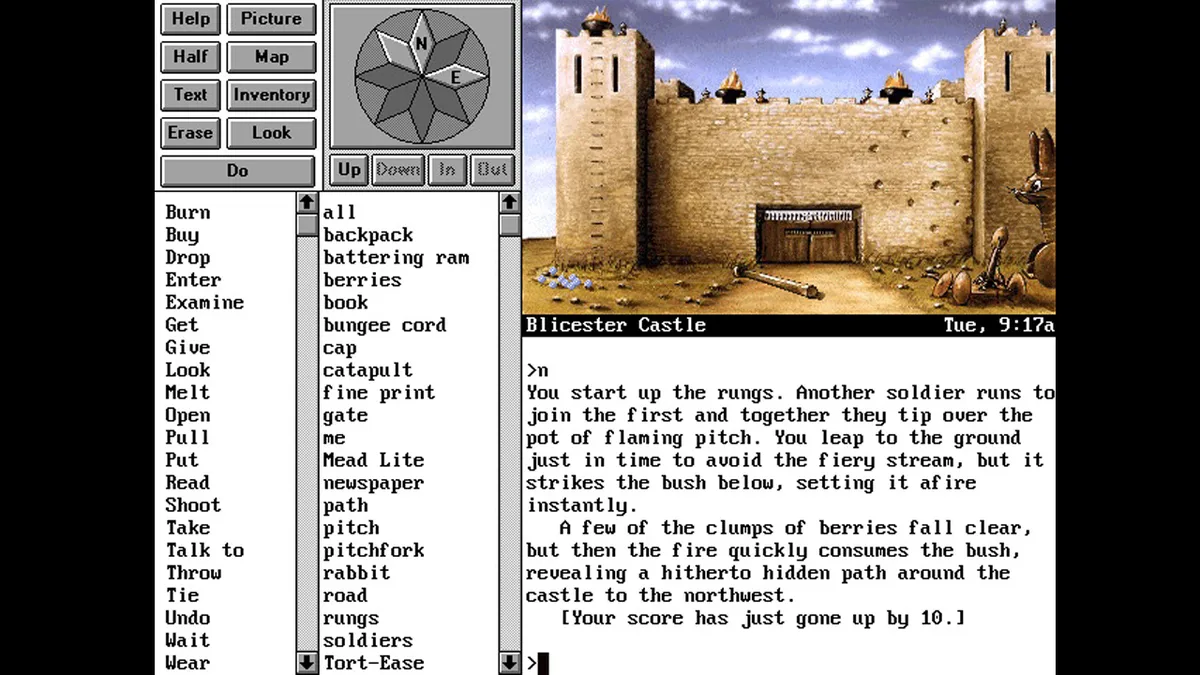
For actions beyond conversation, choose a verb from the verb menu and click an object in the picture to apply that action to it. More complex commands can draw words from the verb, object and preposition menus: a single-click selects a word, while a double-click finishes the command. These mouse operations also have keyboard equivalents. Press Tab to display a cursor, move it with the arrow keys, and use Enter for a click or Shift plus Enter for a double-click. This lets keyboard input perform both word selection and command completion through the same menu-building rules.
Building Typed Commands: Syntax, Sequences and Shortcuts
Typed commands in Eric the Unready start with an action and can add objects and prepositions to specify what Eric should do. A verb such as TAKE needs an object; a transfer can also name its recipient, using GIVE followed by the item, TO and the recipient. Articles such as “the” are optional, so you can omit them without changing that structure. Several actions can share one prompt when separated by periods or the word THEN. Pronouns can connect those actions: after naming an object in one command, a following command can refer to it as IT rather than repeat its name.
Multiple objects use a different kind of grouping from a sequence of actions. With supported verbs such as TAKE and DROP, separate the object names with commas or AND to apply that verb to several things. ALL is another supported option, including in a command that gives all objects of a named kind to a recipient. For shorter individual inputs, the command abbreviations include X for EXAMINE, L for LOOK and Z for WAIT. AGAIN uses G, not A: the parser reserves “a” as an article, allowing ordinary noun phrases without mistaking that word for a request to repeat an action.
Retracing a Move and Returning to Saved Progress
UNDO and RESTORE return Eric to earlier states in different ways. Enter UNDO to step back one turn and reverse the effects of the last move. SAVE instead records your current progress as a named position that you can return to later, including after Eric is killed or you stop playing. You can type SAVE or select it from the verb menu; either method asks you to name the saved file. To return to a recorded position, type RESTORE or choose it from the verb menu. The restore window then displays your previously saved files.
Saved positions have descriptions of up to 33 characters, with room for as many as 128 saved files at once. A description can identify the situation you want to return to, but reusing an existing file name replaces that earlier save rather than preserving both positions. To remove a saved file, move the highlight bar onto its description and press Alt+D.
Sources & further reading.
- Eric The Unready — official game profileRetrieved Nov 8, 2026
- Eric The Unready — official game profile — publisher-supplied gameplay manualRetrieved Nov 8, 2026
First published .