 THE GAME ARCHIVE
Six Ages, Dozens of Puzzles and the Search for Saavedro
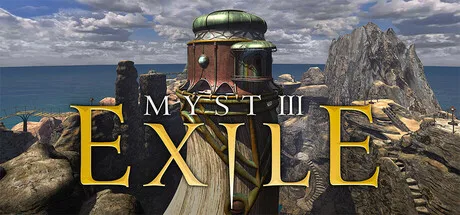
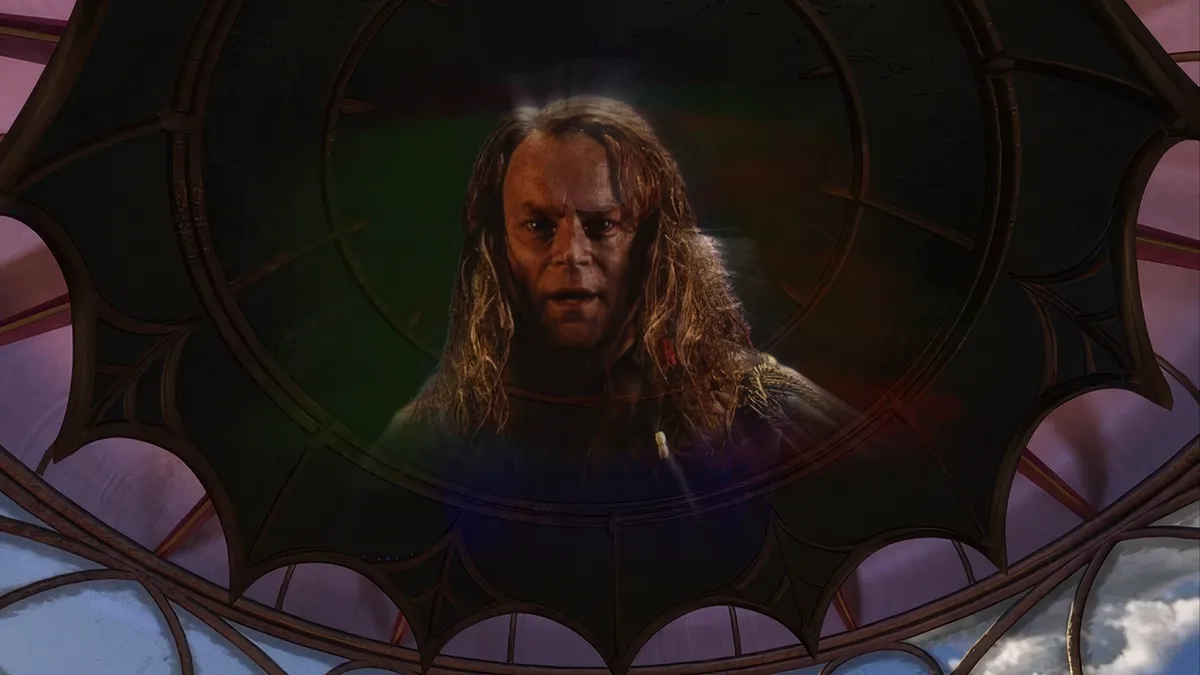
Myst III: Exile sends you through six new Ages in pursuit of Saavedro, with dozens of puzzles to solve across those worlds. Exploration and puzzle-solving sit within a specific search: finding a vengeful antagonist whose plans threaten an entire civilization. The six Ages provide the settings for that pursuit, while the puzzles supply problems to work through along the way.
The search also returns to the family betrayal at the heart of the story. Alongside pursuing Saavedro, your objective is to uncover the dark secrets of the brothers Sirrus and Achenar and understand Saavedro’s desire for revenge. This third chapter of the Myst saga therefore pairs its journey across the Ages with an investigation into those characters, connecting the hunt for its antagonist to the brothers’ concealed history.
Looking Through 360 Degrees: Navigation and Close Inspection
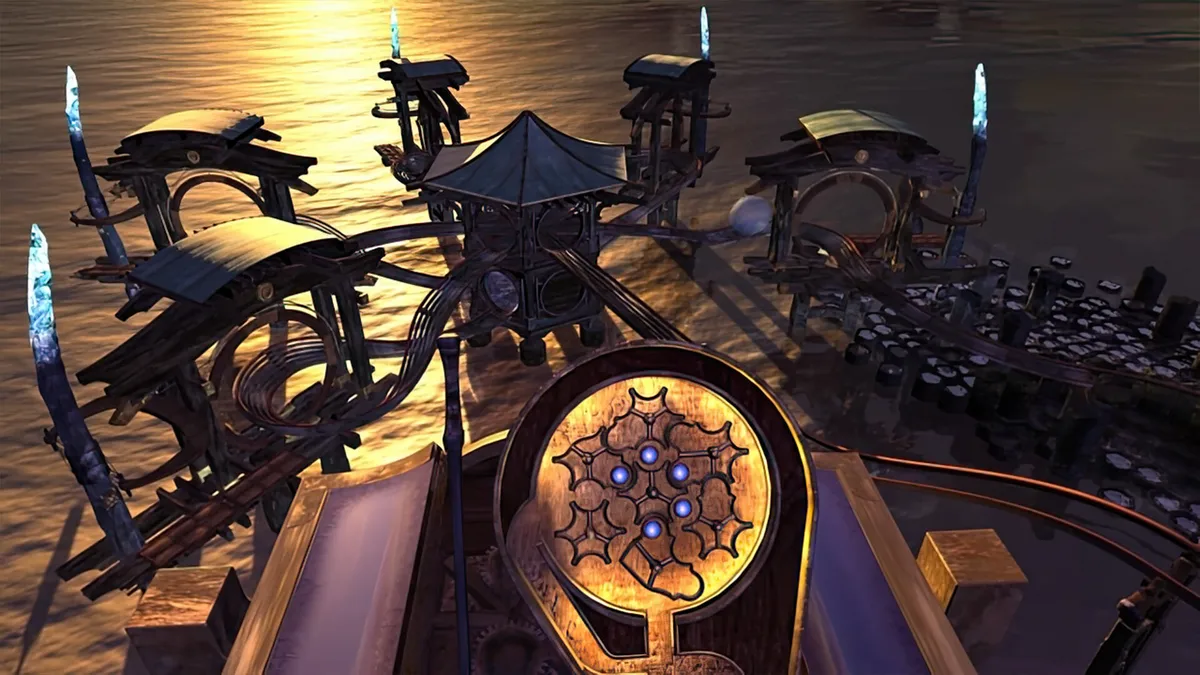
Myst III: Exile lets you turn through a full 360 degrees at each location, with Free Look serving as the default viewing mode. Move the mouse or press the keyboard arrow keys to look around; the pointer stays at the center of the view while you do so. Looking vertically matters as well as turning left or right, since important things can sit above or below you. To move onward, position the cursor where you want to go, then click the mouse button or press the space bar. Looking around and selecting a destination are distinct actions within this navigation system.
Right-clicking changes Free Look to Cursor mode, while close inspection has its own pointer cue. When something supports a closer view, the Zoom In indicator uses a plus sign to identify it. Click once to examine the subject in greater detail, then click again to zoom back out; the Zoom Out indicator uses a minus sign. This gives examination a different operation from the panoramic sweep available at each location: turning the view lets you look around, whereas the zoom pointer marks something you can inspect more closely. The second click returns you from that close examination without selecting an onward destination.
Buttons, Wheels and Letters: Interacting and Carrying Objects
Interacting with the world uses a click on the thing itself: press a button, open a door, turn a wheel or examine a letter by selecting it with the mouse. The same method also covers picking up objects and talking to people, so clicking is not restricted to operating machinery. The cursor changes to indicate the kind of action a click will perform. In particular, an open-hand pointer identifies an object you can use or manipulate. A wheel, a letter and a person therefore share the basic input, while the cursor supplies information about the available interaction.
Only a limited number of objects can be picked up and carried, and clicking one of those objects adds it to your possession automatically. Accessing what you carry takes a separate sequence: right-click or press Caps Lock to enter Cursor mode, then move the pointer into the black area along the bottom of the screen. Your carried items appear there, ready to be selected. Click an item to use or examine it. This separates collecting an object in the world from returning to it later: pickup happens at the object, while subsequent access runs through the bottom-screen item display.
Revisiting Explored Places with Zip Mode and Keeping Named Saves
Zip Mode provides a shortcut back to places you have already explored. Enable it in the Options menu, then watch for the pointer to become a lightning bolt over certain areas. Clicking there moves you immediately to the indicated area rather than taking you through the intervening locations. The setting and pointer cue work together: Zip Mode must be enabled, and the lightning bolt identifies where the shortcut is available. Its documented scope is revisiting explored places, not opening a route to somewhere you have yet to explore.
To keep your progress, open the Save Game screen, select a slot on the left-hand page, enter a title and click Save Game. The screen automatically selects the next available slot and suggests a title, but saving still requires the Save Game button. Filling a page makes another page available; use the arrows to move between pages of saves. Named entries can therefore extend across multiple pages rather than stopping at the first page. You can also remove an old save here: after saving your game, select the unwanted entry on the left page and click Delete. That deletion is permanent.
Sources & further reading.
- Myst III: Exile — official game profileRetrieved Nov 7, 2026
- Myst III: Exile — official game profile — publisher-supplied gameplay manualRetrieved Nov 7, 2026
First published .