 THE GAME ARCHIVE
The Sum of All Fears asks you to run a counter-terrorism operation rather than simply shoot through one. The publisher-supplied manual for the Windows release builds the campaign around a briefing that frames four objectives, an equipment screen where pre-set outfits decide what your team carries, and an in-mission display that keeps the current objective in view. Because the required work is fixed in advance and your weapons come in preset combinations, most of the meaningful choices happen before contact: which tab you read, which outfit you take, and how much of your aim assist and vision aid you leave switched on.
The Briefing: Numbered and Special Objectives
Each mission opens on a screen whose top left holds tabs for four objectives. Some missions number all four 1 through 4; others number 1 through 3 and mark the fourth with an X. Numbered objectives are the mission objectives, and all of them must be completed to finish the mission, while X-marked entries are special objectives. That distinction shapes how you read a briefing: the numbered tabs are the win condition, and the special tab is something the designers flagged separately rather than folded into the required set. A player who skips the briefing tabs and simply moves toward contact can finish the numbered list by accident, but will not know whether the designers expected anything extra of the mission.
Clicking the Objectives tab opens the first objective, and Previous and Next buttons at the bottom of the text step backward and forward through the rest. The Intel tab works differently: it lists the available intelligence briefings, and selecting one opens background on the situation, technical detail about the assignment, or findings from the last mission that affect the next. Between the two tabs, a briefing is where a mission's required work, its optional special task, and its context are laid out before you commit. Reading Intel last, after the Objectives, keeps the technical notes attached to the tasks they describe.
Once the mission is running, the bottom of the Operative Panel carries a one-line readout of the current objective, so the required next step stays visible in the field. The same panel carries three ovals for the squad's Formation, Movement, and Rules of Engagement, and doubles as the Stance Indicator. In practice the panel combines the mission's checklist with the squad's status display: you can confirm what you have to do next and how your squad is set up without opening the briefing again.
Outfits and the Equipment Screen
A Change Equipment button on the briefing screen opens the loadout decision. The center of the screen shows the team's current weapons and how much ammunition each has, and the right side lists possible outfits. Each outfit is a combination of weapons for the team; clicking one makes it current and displays details about the weapons and tools it contains, scrollable with the arrows above and below that information box. A Show Team button then displays the team wearing the chosen loadout. Because the combination is preset rather than slot-by-slot, the choice is really about which package of weapons and tools suits the mission, not about assembling a custom kit.
The available outfits depend on two things: the mission itself and the missions already completed. Each successful completion unlocks more options for future missions and quick missions, so the loadout list is a record of progress as much as a shopping menu. The practical consequence is that an early mission may restrict you to a narrower set of combinations, while a campaign further along opens more ways to tailor the team. If a job feels constrained, the limitation may be progress rather than the mission's design.
Fire Modes and Reading the Weapon Panel
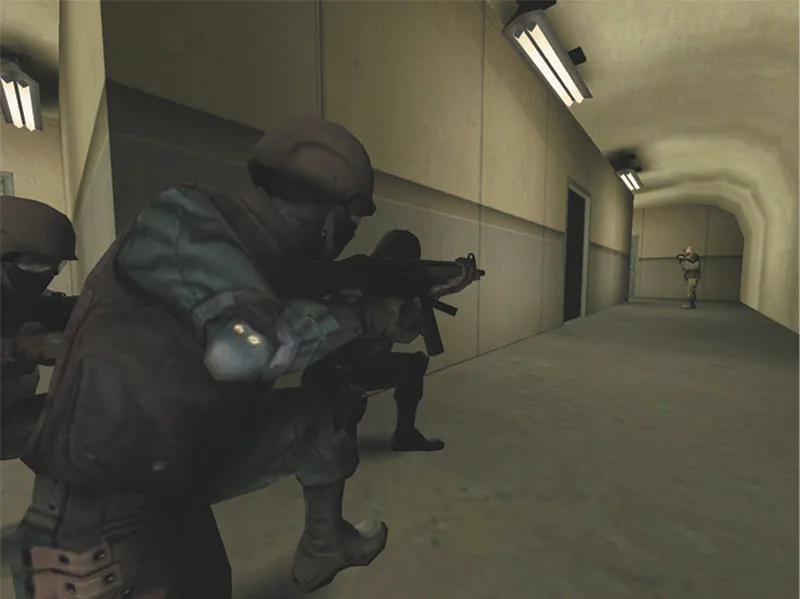
Weapons can be set to Single Shot, Burst, or Full Auto, though not every weapon offers all three. Single Shot fires one bullet per tap and is the most accurate mode but the slowest. Burst releases three bullets at a time, trading accuracy for stopping power. Full Auto keeps firing while the Fire Button is held and is not very accurate, which makes it useful for clearing rooms. If the selected fire rate is unavailable for the current weapon, the weapon defaults to Single Shot, and you can still cycle through whichever modes the weapon does support.
The Weapon Panel at the lower right of the Action Screen tells you which weapons the current character carries, which is active, and how much ammunition is loaded and left. At the top left is a count of bullets remaining in the current clip; for grenades it reports how many you have overall. Next to that number is the name of the selected weapon, and below it the number of clips remaining. To the right, four boxes hold icons of the weapons and equipment you are carrying. Checking that panel before choosing a fire mode is how you avoid switching into a mode the weapon cannot actually deliver.
Accuracy is shown through the reticule pips: firing lands somewhere within the area the pips mark out, and the pips tighten toward the center as accuracy improves. Any firing lands within that marked area, and every time you move the pips return to the edge of their range and accuracy drops again. Some weapons, grenades among them, keep their pips still, signalling a static level of accuracy. That is the practical link between movement and shooting discipline: the tightest spread comes from settling in place before firing, and taking a shot mid-move opens the pips back up.
Grenades, Night Vision, and the Vision Trade-off
Grenades come in Fragmentation and Flashbang types. Fragmentation grenades are deadly; Flashbangs stun and are useful for clearing rooms that hold hostages. To use one, switch to the grenade in your arsenal, usually item 3, and the reticule changes to reflect the new weapon. Tapping the Use Item Button tosses short; holding it down and releasing throws farther. Grenades bounce off walls, which makes them a way to reach around corners where a direct throw won't land. Choosing between the two types is therefore a hostage-safety decision as much as a damage decision.
Low light adds a separate decision. Night Vision can be turned on to see in the dark, though the manual is explicit that it is imperfect, and turning it on may temporarily provide inferior vision. You can switch between vision modes instantly, so the mode is a tool to flip rather than a commitment. The documented lesson is that Night Vision is a fallback for dark spaces, not an upgrade you leave running.
Difficulty, Auto Targeting, and Aiming Help
Difficulty is set to Easy, Medium, or Hard and determines how hard the game is. It cannot be changed during Team Mode, and a player who has not joined a team when play starts is assigned to one automatically. Difficulty also governs one of the assist options: the setting that keeps the Heartbeat Sensor automatically on is available only on the easiest difficulty and is greyed out otherwise. In single play, then, picking Easy is not just a difficulty tweak; it also decides whether recon happens for you or has to be switched on deliberately.
Auto Targeting has three settings. Off requires you to find your own targets. Snap makes the reticule snap to a visible target when it comes within a certain range. Full snaps as soon as a target appears on screen. The restriction that matters most is that Auto Targeting cannot find hidden enemies: well-hidden troops, or ones behind closed doors, are not picked up automatically. Aim assist therefore shortens the reaction needed for a visible threat but does nothing to reveal one you cannot see, which is where the recon tools carry the load.
The Mini-Map, Threat Indicator, HBS, and IFF
The Mini-Map at the bottom center of the screen gives a top-down view of the area you are in. Your operative is a white diamond and friendly units are green diamonds; killed friendlies show as dull green diamonds and killed enemies as dull red ones. Living enemies appear only when they are in sound or sight range, unless a heartbeat sensor is carried or switched on, in which case enemies inside the sensor's effective range also appear. They show up even if they are on the other side of locked doors or walls. You can zoom the map in and out with the plus and minus keys by default, and an option toggles the optimal advancement path through the level as a white line on the Mini-Map.
The Threat Indicator is the series of linked dashes around the Mini-Map, normally gold; when an enemy lies in a given direction, the segment closest to that threat turns red. It shows direction only, not altitude: an enemy on the third floor registers only by cardinal direction when you are on the first. A separate option controls whether the Threat Indicator appears on screen at all, so a player who finds the dashes distracting can remove them. The indicator tells you that you are about to walk toward company without telling you how far away that company is.
IFF controls how the game tells friend from foe. With Reticule, a friendly unit's name appears when you sweep the reticule over them, and the reticule changes colour from yellow to blue when you are aiming at someone on your side. With Names, every friendly unit's name is displayed over their head throughout the level, even when they are not in the same room. Off removes the aid. Choosing a level means trading screen clutter for target confirmation, and the blue-reticule cue is the line of defence against firing on your own squad.
Team Match Rules: Game Types, Respawn, AI Backup, and Arcade
Team Mode is built around five game types. King of the Hill, Search and Rescue, Last Man Standing, Siege, and Domination each turn the same shooting systems toward a different objective. Last Man Standing awards the win to the last team alive, or, if time expires before one team eliminates its rivals, to the team with the most kills. Siege casts one squad as defenders of a base marked by a pillar of smoke while everyone else tries to capture it. Domination spreads squads across multiple bases, scoring more points the longer each base is held, with the highest total at the end winning.
Respawn settings decide how players return after death. None ends a player's game permanently; Individual limits respawns per person; Team governs returns on a team basis; and Infinite allows repeated re-entry. AI Backup fills any platoon that is short with a mix of operative types, and if live AI Backup exists when your operative goes down, you are shunted into one of those computer-controlled operatives and continue playing. Arcade Mode quickens the action, makes operatives more resistant to damage, and supplies unlimited ammunition. Map Options list the currently available maps, defaulting to the first map shown until another is clicked.
Mission Commands and Key Configuration
Input Options control how your input reaches the game: a Key Configuration window lists all key inputs and their current assignments, and the mouse's Y axis can be inverted for players who prefer it. The Manual documents Quick Save and Quick Load as paired options that capture and restore progress, alongside Continue, Restart, Abort mission, and a Mission Status entry that reports on the current assignment. Those named commands cover saving, resuming, reloading a progress point, and restarting or leaving a mission.
Edition and Current Access
The version documented here is the Windows game from Red Storm Entertainment published by Ubisoft, listed on Steam with a 2008 year attached to the product. This feature describes the gameplay systems recorded in the publisher-supplied manual for that release; the supplied sources describe no separate port or remake, so the rules here are presented as the documented ones.
Scroll sideways to see the full table →
| Item | Documented detail |
|---|---|
| Developer / publisher | Red Storm Entertainment / Ubisoft |
| Documented platform | Windows |
| Listed product year | 2008 |
| Mission objectives | Four tabs; numbered 1–4 or 1–3 plus an X special objective |
| Fire modes | Single Shot, Burst, Full Auto (not all weapons offer all three) |
| Grenades | Fragmentation and Flashbang; tap for short toss, hold and release for long |
| Team Mode types | King of the Hill, Search and Rescue, Last Man Standing, Siege, Domination |
| HBS Always On | Available only on the easiest difficulty |
- None — Once dead, no respawning.
- Individual — Respawns are limited per person.
- Team — Returns are governed on a team basis.
- Infinite — Players can re-enter repeatedly.
Sources & further reading.
- The Sum of All Fears — official game profile Retrieved Oct 19, 2026
- The Sum of All Fears — official game profile — publisher-supplied gameplay manual Retrieved Oct 19, 2026
First published .